

Introduction
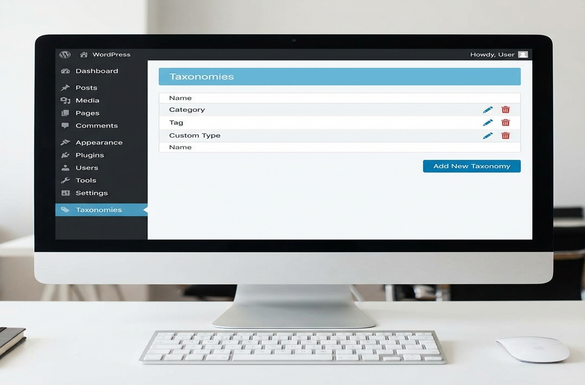
If you've ever felt limited by just "Categories" and "Tags" in WordPress, you're not alone. While these default tools are great for a standard blog, they often fall short when you're building a movie database, a recipe site, or an e-commerce store.
Enter Custom Taxonomies.
Custom taxonomies are one of the most powerful features in WordPress, allowing you to group and organize your content in ways that make perfect sense for your specific project. In this guide, we’ll break down exactly what they are, why you need them, and how to start using them.
What Is a Taxonomy in WordPress?
In simple terms, a taxonomy is a way to group things together. The clearer your groups, the easier it is for users to find what they're looking for.
By default, WordPress comes with two public taxonomies for posts:
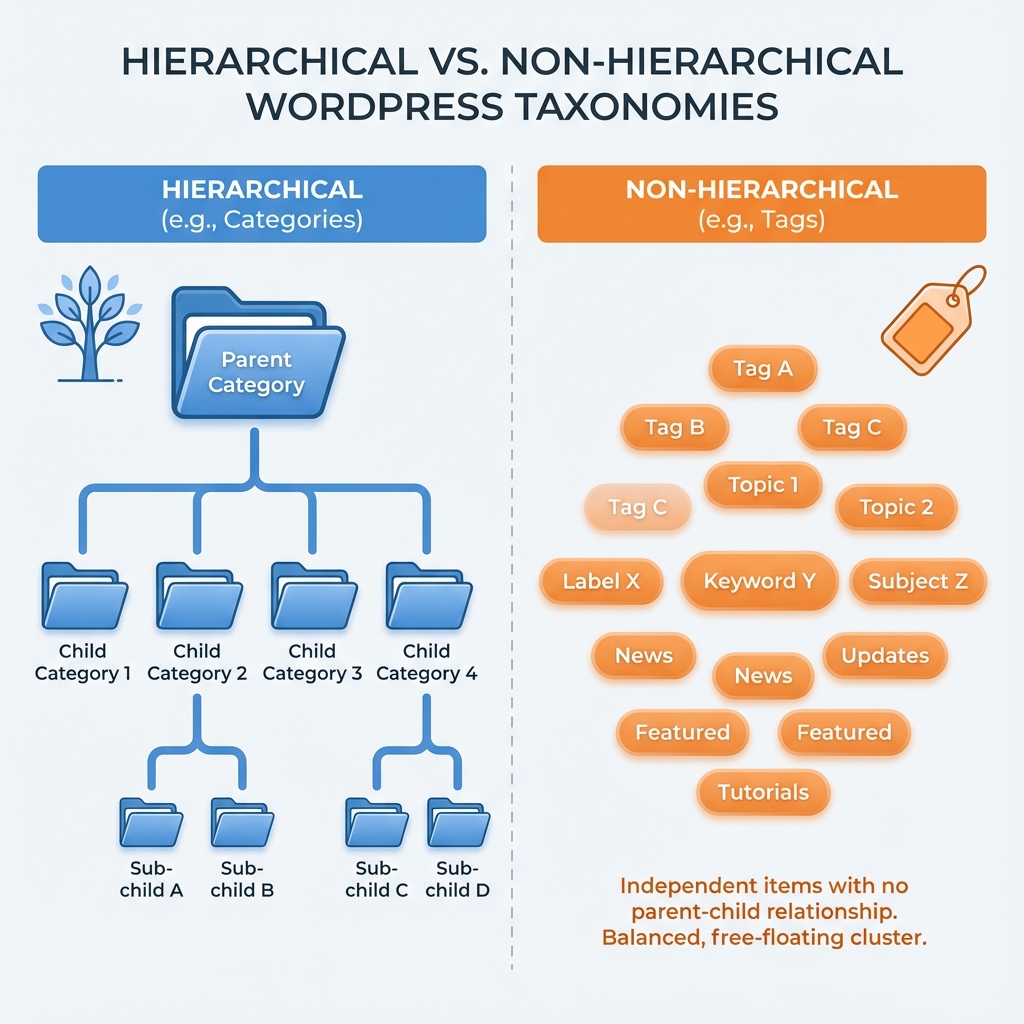
- Categories: Hierarchical (like folders). Best for broad grouping.
- Tags: Non-hierarchical (flat). Best for specific details.
But what if you run a Book Review site? grouping a book under a category named "Fiction" is fine, but you might also want to group books by:
- Author (e.g., J.K. Rowling)
- Genre (e.g., Fantasy)
- Publisher (e.g., Bloomsbury)
Using standard Categories for all of these would result in a messy, cluttered site structure. This is where Custom Taxonomies shine.
Hierarchical vs. Non-Hierarchical Taxonomies
Understanding the structure is key to choosing the right type of custom taxonomy.
1. Hierarchical (Like Categories)
These have a parent-child relationship. You can have sub-items nested under parent items.
- Example: A "Locations" taxonomy.
- USA (Parent)
- New York (Child)
- California (Child)
- USA (Parent)
2. Non-Hierarchical (Like Tags)
These are flat labels. There is no parent-child structure; everything is equal.
- Example: A "Skills" taxonomy for a portfolio.
- React
- TypeScript
- Design
When Should You Use Custom Taxonomies?
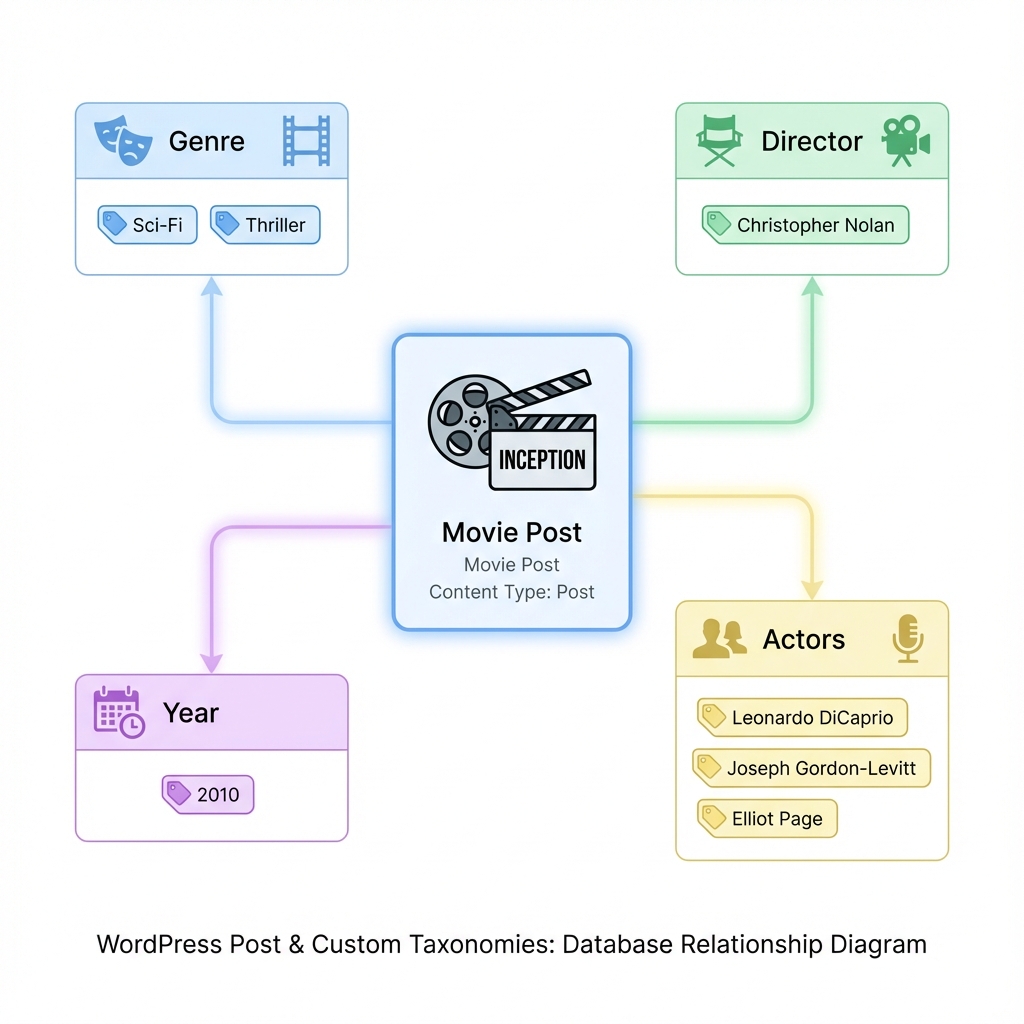
You should create a custom taxonomy whenever you need to filter or group content by a specific attribute that doesn't fit into the standard "Category" or "Tag" bucket.
Real-world examples:
| Website Type | Post Type | Recommended Custom Taxonomies |
|---|---|---|
| Movie Database | Movie | Genre, Director, Year, Actors, Studio |
| Real Estate | Property | Property Type, Location, Amenities, Status (Sale/Rent) |
| Recipe Blog | Recipe | Cuisine, Difficulty, Graphic, Diet (Vegan/Keto) |
| Portfolio | Project | Client, Stack (Tools used), Year |
How to Create Custom Taxonomies
There are two main ways to add custom taxonomies to your WordPress site: using a plugin or coding it manually.
Method 1: The Easy Way (Plugin)
The most popular plugin for this is Custom Post Type UI (CPT UI).
- Install and activate the plugin.
- Go to CPT UI > Add/Edit Taxonomies.
- Slug: Enter a URL-friendly name (e.g.,
movie_genre). - Plural Label: e.g., "Genres".
- Singular Label: e.g., "Genre".
- Attach to Post Type: Select which content type this belongs to (e.g., "Movies").
- Click Add Taxonomy.
Method 2: The "Pro" Way (Code)
For a lightweight solution without plugins, you can add this code to your theme's functions.php file or a site-specific plugin.
Here is a snippet to register a "Genre" taxonomy for regular Posts:
function register_genre_taxonomy() {
    $labels = array(
        'name'              => _x( 'Genres', 'taxonomy general name' ),
        'singular_name'     => _x( 'Genre', 'taxonomy singular name' ),
        'search_items'      => __( 'Search Genres' ),
        'all_items'         => __( 'All Genres' ),
        'parent_item'       => __( 'Parent Genre' ),
        'parent_item_colon' => __( 'Parent Genre:' ),
        'edit_item'         => __( 'Edit Genre' ),
        'update_item'       => __( 'Update Genre' ),
        'add_new_item'      => __( 'Add New Genre' ),
        'new_item_name'     => __( 'New Genre Name' ),
        'menu_name'         => __( 'Genre' ),
    );

    $args = array(
        'hierarchical'      => true, // true = like categories, false = like tags
        'labels'            => $labels,
        'show_ui'           => true,
        'show_admin_column' => true,
        'query_var'         => true,
        'rewrite'           => array( 'slug' => 'genre' ),
    );

    register_taxonomy( 'genre', array( 'post' ), $args );
}
add_action( 'init', 'register_genre_taxonomy' );
Conclusion
Custom Taxonomies are the secret sauce to transforming a standard WordPress blog into a powerful Content Management System (CMS). By grouping your content logically using specific criteria (like Genres, Skills, or Locations), you not only make your life easier as an admin but also drastically improve the user experience for your visitors.
Start small. Think about one extra way you'd like to group your content today, and give custom taxonomies a try!